> For the complete documentation index, see [llms.txt](https://kdongs.gitbook.io/kdocs/llms.txt). Markdown versions of documentation pages are available by appending `.md` to page URLs; this page is available as [Markdown](https://kdongs.gitbook.io/kdocs/docker/docker.md).

# Docker

## How it Works

### Containers

They are processes that **run over the host OS**, and that are **isolated** by `Namespaces`, so they belive to be the only running processes.

`CGroups` help to isolate the computational resources that can be used by each isolated process (Container).

For last the `OFS (Overlay File System)` allows the container to work in layers and this means that they don't need to have entire chunks of the host OS, making them much lighter than Virtual Machines for instance.

#### Advantages

* Have Low impact on host OS, are very fast and use minimal disk space usage.
* Are very easy to Share, re-build and distribute.
* Encapsulate apps/ environments instead of "whole machines".

### Images

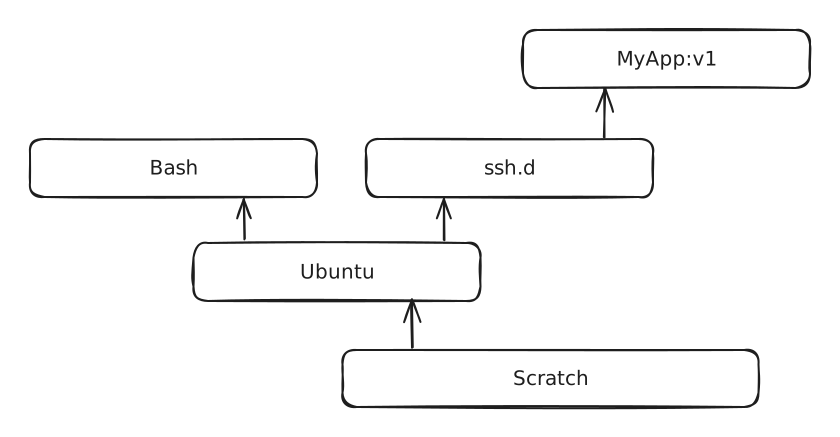
They are not snapshots of the container. Images are made on layers, layers of dependencies.

**Images are Immutable.** *(This means, when a container dies, all is lost)*

<img src="https://3390216909-files.gitbook.io/~/files/v0/b/gitbook-x-prod.appspot.com/o/spaces%2FGV3rTbvjivkQpqWffOD8%2Fuploads%2FkqjgjliiXdcSZZCPXHP7%2Ffile.excalidraw.svg?alt=media&amp;token=f09945d7-9e49-4036-a8e9-932b2bcc2c59" alt="" class="gitbook-drawing">

This helps on maintainability, since problems in a specific layer don't affect the lower layers and don't necessarily affect the upper layers.

After a change in one of layers, in a re-build, only the changed layer and upper layers will be re-build. The lower layers are cached, and this speed up the building process.

These images stay in a `Image Registry`, that you can `pull` from there.

#### Image

Usually an Image have a `name` and an optional `tag` `MyAppImage:v1`.

You can generate an image either through a `Dockerfile` or by commiting a change in a running container.<br>
### Docker Host

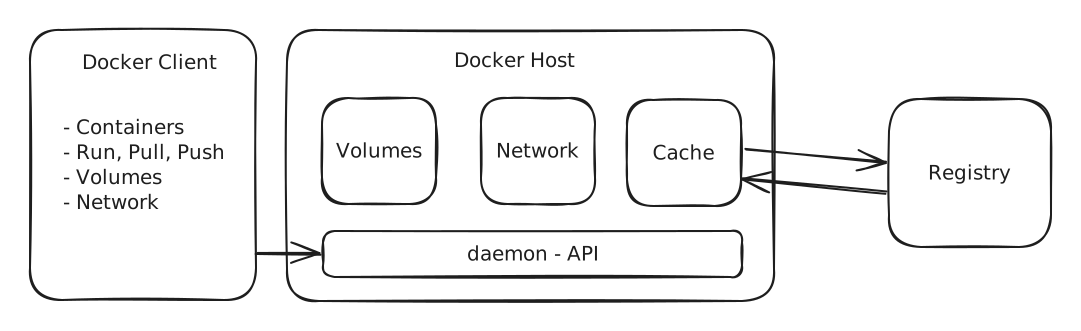
Docker have the Host, which is where it will run. The Host will run a Daemon on the background that provides the Docker API.

The Docker Host also have a **Cache**, that stores images pulled from the Docker Registry and images built images.

It handles **Volumes**, to handle persistence on file changes inside containers, since Images are immutable.

It also handles **Network**, for communication between containers.

#### Docker Client

To talk to this Docker Host, you need a Docker Client, which usually is when you call `docker` in a terminal.

<img src="https://3390216909-files.gitbook.io/~/files/v0/b/gitbook-x-prod.appspot.com/o/spaces%2FGV3rTbvjivkQpqWffOD8%2Fuploads%2FJXb03k3CMCfuhA03KTqn%2Ffile.excalidraw.svg?alt=media&amp;token=f08e95c4-1753-4119-901f-2ee46d92178e" alt="" class="gitbook-drawing">

## Installing Docker Engine

### [Ubuntu](https://docs.docker.com/engine/install/ubuntu/#install-using-the-repository)

<pre class="language-bash"><code class="lang-bash"># Add Docker's official GPG key:
sudo apt update
sudo apt install ca-certificates curl
sudo install -m 0755 -d /etc/apt/keyrings
<strong>sudo curl -fsSL https://download.docker.com/linux/ubuntu/gpg -o /etc/apt/keyrings/docker.asc
</strong>sudo chmod a+r /etc/apt/keyrings/docker.asc

# Add the repository to Apt sources:
echo \
  "deb [arch=$(dpkg --print-architecture) signed-by=/etc/apt/keyrings/docker.asc] https://download.docker.com/linux/ubuntu \
  $(. /etc/os-release &#x26;&#x26; echo "$VERSION_CODENAME") stable" | \
  sudo tee /etc/apt/sources.list.d/docker.list > /dev/null
sudo apt update

# Install docker packages
sudo apt install docker-ce docker-ce-cli containerd.io docker-buildx-plugin docker-compose-plugin
</code></pre>

#### [Rootless mode](https://docs.docker.com/engine/security/rootless/)

```bash
# Shutdown docker
sudo systemctl disable --now docker.service docker.socket
sudo rm /var/run/docker.sock

# Run as non-root user
/usr/bin/dockerd-rootless-setuptool.sh install

# Then confirm docker is running rootless daemon
docker info
```

{% hint style="info" %}
With rootless mode, you may experience [networking problems](https://docs.docker.com/engine/security/rootless/troubleshoot/#docker-run--p-fails-with-cannot-expose-privileged-port).

The most common, *'*[***cannot expose privileged port**'*](https://docs.docker.com/engine/security/rootless/tips/#exposing-privileged-ports)*.*
{% endhint %}

```bash
sudo setcap cap_net_bind_service=ep $(which rootlesskit)
systemctl --user restart docker
```

### [WSL Ubuntu distro](https://docs.docker.com/engine/install/ubuntu/#install-using-the-repository)

In Windows or Linux you may install only the Docker Engine, which will be much lighter.

For Windows you must first install WSL2 *(Windows Subsystem for Linux)*, since you cannot install Docker Engine directly on Windows.

More info on [WSL2](https://kdongs.gitbook.io/kdocs/wsl2/).

[#ubuntu](#ubuntu "mention")

#### [Manage Docker as a non-root user](https://docs.docker.com/engine/install/linux-postinstall/#manage-docker-as-a-non-root-user) <a href="#manage-docker-as-a-non-root-user" id="manage-docker-as-a-non-root-user"></a>

Give permissions to run Docker with your current user, so that you don't have to always use the root user.

```bash
sudo usermod -aG docker $USER
```

```bash
wsl --terminate "name"
```

After it restart you can start Docker with `sudo service docker start`.

## Docker Commands

{% embed url="<https://docs.docker.com/reference/cli/docker/>" %}
CLI reference
{% endembed %}

{% hint style="info" %}
`CONTAINER_ID` is a auto generated ID for each container. In some commands you can specify this ID instead of the container name.

**And if you use the ID, you don't have to write the entire ID but only a unique part of it.**
{% endhint %}

{% hint style="info" %}
The container NAME will also be auto generated if not specified in a `Dockerfile` or when building/running the container.
{% endhint %}

### [`attach`](https://docs.docker.com/reference/cli/docker/container/attach/)

`docker attach [OPTIONS] "container-id"`

Attach local `STDIN`, `STDOUT` and `STDERR` to a running container.

<table><thead><tr><th width="189">Flag</th><th>Description</th></tr></thead><tbody><tr><td><code>-no-stdin</code></td><td>Don't attach the <code>STDIN</code>.</td></tr></tbody></table>

### [`exec`](https://docs.docker.com/reference/cli/docker/container/exec/)

`docker exec [OPTIONS] "container-id" COMMAND [ARG...]`

Execute commands inside a running container.

* Commands run in the default working directory of the container.

<table><thead><tr><th width="189">Flag</th><th>Description</th></tr></thead><tbody><tr><td><code>-d</code></td><td>To run commands in the background. <em>(Without blocking the terminal)</em></td></tr><tr><td><code>-it</code></td><td><ul><li><p>To attach the current terminal to the container. <em>(Like if you were opening a teminal inside the container)</em></p><ul><li><code>-i</code> to keep <code>STDIN</code> open.</li><li><code>-t</code> to allocate a pseudo-TTY <em>(Pseudo Terminal)</em></li></ul></li></ul><p><em>Ex.:</em> <code>docker exec -it "container-id" bash</code></p></td></tr><tr><td><code>--privileged</code></td><td>Give extentended privileges to the command.</td></tr><tr><td><code>-w</code></td><td>To set the working dir inside the container.</td></tr></tbody></table>

### [`logs`](https://docs.docker.com/reference/cli/docker/container/logs/)

`docker logs [OPTIONS] "container-id"`

Batch-retrieves logs presented at the time of execution.

<table><thead><tr><th width="189">Flag</th><th>Description</th></tr></thead><tbody><tr><td><code>--details</code></td><td>Show extra details provided to logs.</td></tr><tr><td><code>--follow</code></td><td>Follow log output.</td></tr><tr><td><code>--since</code></td><td>Show logs since timestamp (<em>ex.:</em> <code>2013-01-02T13:23:37Z</code>) or relative (<em>ex.:</em> <code>10m</code>)</td></tr><tr><td><code>--tail</code></td><td>Number of lines to show from the end of the logs.</td></tr><tr><td><code>--timestamps</code></td><td>Show timestamps.</td></tr><tr><td><code>--until</code></td><td>Show logs before a timestamp (<em>ex.:</em> <code>2013-01-02T13:23:37Z</code>) or relative (<em>ex.:</em> <code>10m</code>)</td></tr></tbody></table>

### [`prune`](https://docs.docker.com/reference/cli/docker/container/prune/)

`docker prune [OPTIONS]`

Removes all stopped containers.

### [`ps`](https://docs.docker.com/reference/cli/docker/container/ls/)

`docker ps [OPTIONS]`

Shows the **running** containers and info about them.

<table><thead><tr><th width="189">Flag</th><th>Description</th></tr></thead><tbody><tr><td><code>-a</code></td><td>Shows all <strong>active and inactive</strong> containers.</td></tr><tr><td><code>-q</code></td><td>Only display container IDs.</td></tr><tr><td><code>-s</code></td><td>Display total file sizes.</td></tr></tbody></table>

### [`restart`](https://docs.docker.com/reference/cli/docker/container/restart/)

`docker restart [OPTIONS] ["container-id"...]`

Restart on or more containers.

<table><thead><tr><th width="189">Flag</th><th>Description</th></tr></thead><tbody><tr><td><code>-s</code></td><td>Signal to send to the container.</td></tr><tr><td><code>-t</code></td><td>Seconds to wait before killing the container.</td></tr></tbody></table>

### [`rm`](https://docs.docker.com/reference/cli/docker/container/rm/)

`docker rm [OPTIONS] ["container-id"...]`

To destroy the one or more containers.

This will also `prune` `networks` and `volumes` of this container, IF not used by others.

<table><thead><tr><th width="189">Flag</th><th>Description</th></tr></thead><tbody><tr><td><code>-f</code></td><td>Force the removal.</td></tr><tr><td><code>-l</code></td><td>Remove the specified link.</td></tr><tr><td><code>-v</code></td><td>Remove anonymous volumes associated with the container.</td></tr></tbody></table>

### [`run`](https://docs.docker.com/reference/cli/docker/container/run/)

`docker run [OPTIONS] "image-name:tag" [COMMAND] [ARG...]`

Create and run a new container from an image.

It can also run a command in a new container, pulling the image if needed and starting the container.

* If no `tag` was specified on the `image-name` it will use `latest` as default.

<table><thead><tr><th width="189">Flag</th><th>Description</th></tr></thead><tbody><tr><td><code>-a</code></td><td>Attach to <code>STDIN</code>, <code>STDOUT</code> or <code>STDERR</code>.</td></tr><tr><td><code>--cpus</code></td><td>Number of CPUs.</td></tr><tr><td><code>-d</code></td><td>To run the container in <strong>detached</strong> mode. <em>(The terminal won't get blocked executing the container)</em></td></tr><tr><td><code>-e</code> or <code>--env</code></td><td>Set environment variables.</td></tr><tr><td><code>--env-file</code></td><td>Set the <code>.env</code> file with environment variables to be used.</td></tr><tr><td><code>-i</code></td><td>Keep <code>STDIN</code> open.</td></tr><tr><td><code>--ip</code></td><td>IPv4 address.</td></tr><tr><td><code>--memory</code></td><td>Memory limit.</td></tr><tr><td><code>--mount</code></td><td>Attach a filesystem to the container.<br><em>Non existent files or folders in the host generate an error.</em><br><em>Ex.:</em> <code>--mount type=bind,source=~/host/path,target=~/container/path</code></td></tr><tr><td><code>--name</code></td><td>Specify the <strong>name</strong> of the container.</td></tr><tr><td><code>--network</code></td><td>Connect a container to a network.</td></tr><tr><td><code>-p</code></td><td>Specify the <strong>port map</strong> of the container.<br><em>Ex.:</em> <code>-p hostPort:containerPort</code></td></tr><tr><td><code>--restart</code></td><td>Restart policy to apply when a container exits.</td></tr><tr><td><code>--rm</code></td><td>To <strong>auto destroy</strong> the container and its associated anonymous volumes after it stops.</td></tr><tr><td><code>-t</code></td><td>Allocate a pseudo-TTY <em>(Pseudo Terminal)</em></td></tr><tr><td><code>-v</code></td><td>Mount volumes do the container. <strong>(Prefer using <code>--mount</code>)</strong><br><em>Non existent files or folders in the host are created by docker.</em><br><em>Ex.:</em> <code>-v ~/host/path:~/container/path</code></td></tr><tr><td><code>-w</code></td><td>Specify working directory inside the container.</td></tr></tbody></table>

### [`start`](https://docs.docker.com/reference/cli/docker/container/start/)

`docker start [OPTIONS] ["container-id"...]`

To start or re-start one or more containers that are **not** running.

<table><thead><tr><th width="189">Flag</th><th>Description</th></tr></thead><tbody><tr><td><code>-a</code></td><td>Attach to <code>STDOUT</code> or <code>STDERR</code>, and forward signals.</td></tr><tr><td><code>-i</code></td><td>Attach container's <code>STDIN</code>.</td></tr></tbody></table>

### [`stop`](https://docs.docker.com/reference/cli/docker/container/stop/)

`docker stop [OPTIONS] "container-id"`

To stop specified containers.

{% hint style="danger" %}
Containers don't auto destroy after they are stopped. Have that in mind to not bloat your hardrives.
{% endhint %}

<table><thead><tr><th width="189">Flag</th><th>Description</th></tr></thead><tbody><tr><td><code>-s</code></td><td>Signal to send to the container.</td></tr><tr><td><code>-t</code></td><td>Seconds to wait before killing the container.</td></tr></tbody></table>

## Container's Data Storage

{% embed url="<https://docs.docker.com/engine/storage/>" %}

By default all files created inside a container are stored in a writable container layer.&#x20;

So:

* Data don't persist when container is destroyed and it can become difficult to get data out of the container.
* A container's writable layer is tightly coupled to the host machine where the container is running.
* Writing into a container's writable layer requires a [storage driver](https://docs.docker.com/engine/storage/drivers/) to manage the filesystem. The storage driver provides a union filesystem, using the Linux kernel. This extra abstraction reduces performance as compared to using *data volumes*, which write directly to the host filesystem.

*No matter which type of mount you choose to use, the data looks the same from within the container.*

### [Bind Mounts](https://docs.docker.com/engine/storage/bind-mounts/)

Are a way of mounting existent files or folders from the host to the container, to persist data.

* Are more limited than `Volumes`.
* They can be shared between containers.
* They are managed by you. *(Docker don't manage them)*
* They depend on the directory structure and OS of the host machine.

{% hint style="danger" %}
**Bind mounts allow write access to files on the host by default.**

\
One side effect of using bind mounts is that you can change the host filesystem via processes running in a container, including creating, modifying, or deleting important system files or directories. This is a powerful ability which can have security implications, including impacting non-Docker processes on the host system.
{% endhint %}

#### Starting containers with bind mounts

This can be done using `-v` or `--mount` parameters.

```bash
docker run ... -v ~/dev:~/dev
```

```bash
docker run ... ---mount type=bind,source=~/dev,target=~/dev
```

#### Readonly bind mounts

```bash
docker run ... ---mount type=bind,source=~/dev,target=~/dev,readonly
```

#### `-v` vs `--mount`

The major difference is on `-v` if a specified host file or folder doesn't exist in the host, docker will create it.

On `--mount`, it will not create it, and instead an error will be raised.

### [Volumes](https://docs.docker.com/engine/storage/volumes/)

Are a mechanism for persisting data in containers that are completely managed by Docker.

* Easier to backup and migrate.
* More safely shared among multiple containers.
* Let's you store volumes on remote hosts or cloud and encrypt volume contents.
* Volumes don't increase containers size, because they do not persist data in the container's `writable layer`.&#x20;
* Containers life cycle don't interfere on volumes.

`docker volume [OPTIONS]`

{% embed url="<https://docs.docker.com/reference/cli/docker/volume/>" %}
CLI reference
{% endembed %}

<table><thead><tr><th width="247">Flag</th><th>Description</th></tr></thead><tbody><tr><td><a href="https://docs.docker.com/reference/cli/docker/volume/create/"><code>create</code></a></td><td>Creates volumes.<br><em>Ex.:</em> <code>docker volume create vol1</code></td></tr><tr><td><code>inspect</code></td><td>Display detailed information on one or more volumes.<br><em>Ex.:</em> <code>docker volume inspect vol1</code></td></tr><tr><td><code>ls</code></td><td>List volumes.</td></tr><tr><td><a href="https://docs.docker.com/reference/cli/docker/volume/prune/"><code>prune</code></a></td><td>Destroy all unused local volumes.</td></tr><tr><td><a href="https://docs.docker.com/reference/cli/docker/volume/rm/"><code>rm</code></a></td><td>Destroy one or more volumes. <em>(Cannot be in use by containers)</em></td></tr></tbody></table>

#### Creating a Named volume

Creating volumes with `docker volume create` allows you to use them in multiple projects.

Created volumes will be placed at: `/var/lib/docker/volumes` of the host machine. *(Use* `docker volume inspect` *to check the volume path)*

Set labels for the volumes with:

```bash
docker volume create a-new-volume --label label-key=label-value --label ...
```

#### Starting containers with volumes

If you start a container with a volume that doesn't exist, Docker will create one for you.

`docker run --name mycontainer --mount source=vol1,target=/app`

You can verify the volume was created, by looking the `Mounts` section with:

`docker inspect mycontainer`

#### Using volumes as Readonly

```bash
docker run ... -v ~/dev:~/dev:ro
```

```bash
docker run ... --mount type=bind,source=~/dev,target=~/dev,readonly
```

#### `-v` vs `--mount`

There is no difference between them in volumes.

#### Anonymous vs Named volumes

**Anonymous volumes**

Unamed volumes, they are given a random name that is guaranteed to be unique within a Docker host.

* They persist unless given the `--rm` flag when creating the container.
* Are not reused or shared between containers automatically.
  * To share them between containers, you must mount them using the random volume ID.

{% hint style="info" %}
Useful for containers that don't need to or shouldn't share data. Since it enforces that the container will create it's own volume.
{% endhint %}

**Named volumes**

Are volumes by which the user gave a name.

* Easily shared between containers.

### [Tmpfs Mounts](https://docs.docker.com/engine/storage/tmpfs/)

Are temporary, and only persisted in the host memory. When the containers stops, files written won't be persisted.

* Useful for temporary or sensitive files that you don't want to persist either in the host nor the container writable layer.
* Not shareable between containers.
* Only if running Docker on Linux.

#### Starting containers with tmpfs

#### `docker run --name mycontainer --mount type=tmpfs,source=~/dev,target=~/dev`

## Container's Network

{% hint style="info" %}
Run `docker container inspect "container-id"` to see the IP address of the container.

Docker generates IPs in the range of `172.%.%.%`.
{% endhint %}

{% hint style="danger" %}
Each Docker Network (Default or Created) will have different IP ranges, so these networks are **isolated**.
{% endhint %}

Containers can out-of-the-box communicate with the web.

#### Create Docker Networks with

```bash
docker network create "network-name"
```

You can use different drivers when creating a Network with `--driver` flag.

```bash
docker network create "network-name" --driver bridge
```

#### Delete unused networks with

```bash
docker network prune
```

#### Connect running container to a network with

```bash
docker network connect "network-name" "container-id"
```

#### Container-Host communication

You can use a special domain, that is understood and converted in Docker, to the Host IP address, `host.docker.internal`.

This can be used in `bridge` or `host` modes.

### `bridge`

Useful for `Container-Container` communication.

{% hint style="danger" %}
Created containers with unassigned networks will be inserted in Docker's default bridge network.

Containers in this default network, can communicate with each other **ONLY** by IP address.
{% endhint %}

#### Container-Container communication

{% hint style="info" %}
Technically, containers with unspecified networks (`--network`) that run on `bridge` mode can communicate with other containers with the "container-ip".

But hardcoding "container-ip" is not cool, since they could change.
{% endhint %}

The best way for `Container-Container` communication is to create a network for them, and set this network with `--network "network-name"` flag.

```bash
docker run "image-name" --network "network-name"
```

{% hint style="info" %}
Within a created Docker Network, all container can communicate with each other by their "container-name".

*(Each container in the same created Network will be able to resolve the other container's HostName)*
{% endhint %}

### `host`

Mix Docker's network with Host's network, meaning a Host port will be assigned to the Container.

Useful for communication between `Host` and `Container`.

{% hint style="danger" %}
This network type won't work as expected if Docker is running in Virtual Machines.

Since the Docker Host won't be your machine, BUT the virtual machine.

*(Ex.: Won't work correctly in Mac, or Docker inside Hyper-V, etc...)*
{% endhint %}

#### Host-Container communication

You may access the container with `localhost:<assigned-port>`.

### `overlay`

Useful when you need multiple Dockers in different machines to communicate, as if they were in the same network.

For example, when working with `Swarm` modes.

### `none`

The container is totally isolated.
